

Encountering errors while using your favorite distribution can be not only a pain in the chest, but a headache when you have no idea what is happening and why it is happening to you.
Although this "Read-only file system" message has already happened to me several times, causing me to lose my head and, above all, I ended up having to reinstall my entire system, because when performing some activity through the terminal, it displays this message.
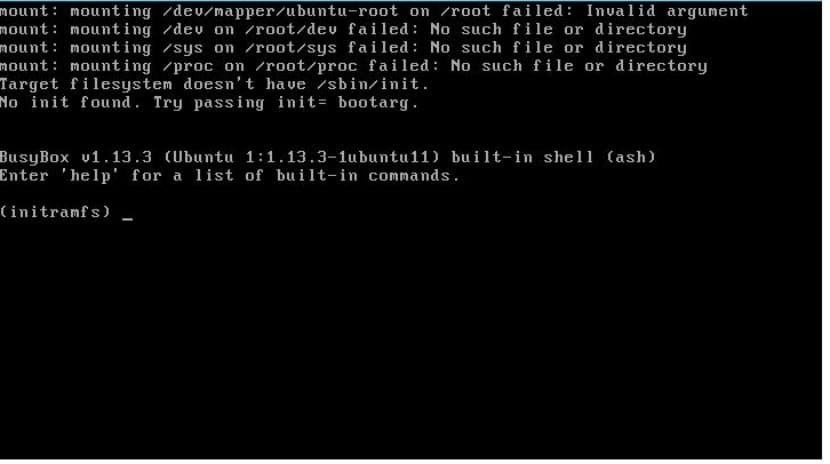
The first thing we proceed to do is restart the computer, which leads us to the fact that when we start it, the system simply does not start the graphical server and we receive the famous black screen:
"BusyBox v* multi-call binary

(initramfs)"
Where many end up deserting and reinstalling the system.
But what we must do is avoid restarting the system ; this is the most advisable thing to do because while we are inside, as the message indicates, the system is only in read mode, so we cannot save anything to the system.
The problem
The first step is to try to identify the error and search the network while we are inside the system, it is easier and above all to try to remember what led us to it.
While the most common thing you can find on the internet is that the system protects itself , since the disk you are using is no longer optimal for storing data.
The result is that it only goes into read mode, so it only allows us to access the data , but it does not allow us to make changes within it.
For me, this is unusual, because I have only been with a new disk for a few weeks and reviewing the SMART data and sectors, it is not possible that it is already in bad condition.
Since personally I did not agree that my disk was already in the last, the first thing I decided to do is to clean my hardware, for that of some particle that is interfering with its operation.
I started my team again and I got the same result.
Solutions
The next thing I did was change the hard drive cables , in my case SATA. I've heard that the classic red cables tend to get damaged very quickly, either from high temperatures or from bending them.
This solution was useful to me.
In other cases, it's at the software level, so what we need to do is identify which partition has been converted to a "Read-only file system".
In the best of cases, if it is a different partition than where your system is located, you have the upper hand, since you have the facility to be able to mount and unmount said partition without problems.
To do this, we can use the terminal and run the following commands , where we will first identify the partition's mount point and then proceed to remount it with read and write permissions:
sudo fdisk -l
Once the partition is identified, we remount it, where / sdXx will be the mount point, it can be / sdb1 or / sdc, etc.
mount -o remount,rw /dev/sdXx
If your system partition was the one that was protected , applying this command won't work, so we need to apply the following :
mount -o remount /
If you keep getting the same error, we can choose to run the following:
sudo fsck -Af -M
sudo reboot
It will check the file system and attempt to make the necessary corrections.
Here we must note the blocks that will be displayed that have errors; in my case, it displayed something like this:
Free blocks count wrong for group #190 (102254, counted=102258). Fix? yes
Free blocks count wrong for group #629 (1558554, counted=1558555).
Fix? yes Free blocks count wrong for group #1558658
Fix? Yes
Where we will try to repair them :
sudo fsck -b 102254 /dev/sda1 -y
In the latter case, we must access the advanced options of our system from GRUB and perform an fsck.
Table of Contents