

If you enjoy classic games and want to play some of them on your PC, you're probably thinking about using more than one emulator at a time . This can be a problem because to enjoy your favorite classic titles, you have to install several emulators on your system.
Given this problem, today we're going to talk about RetroArch, a fantastic application that I'm sure will work for you. RetroArch is an interface for emulators, game engines, and media players designed to be fast, lightweight, portable, and dependency-free. It has advanced features like shaders, netplay, and much more.
About RetroArch
RetroArch is an open-source, modular, multi-frontend software system for the libretro API . Libretro is a simple yet powerful development interface that makes it easy to create emulators, games, and multimedia applications that can connect directly to any compatible libretro frontend.
This is why RetroArch allows you to run classic games on a wide range of computers and consoles through its graphical interface. Configurations are also standardized, so setup is done once and for all.
Among the most popular emulators you'll find on RetroArch, we can highlight the following:
- Dolphin
- DOSBox
- emux
- Fuse
- Genesis Plus GX
- Hatari
- M
- MESS
- Mupen64More
- nestopia
- PCSX1
- PCSX ReARMed
- PPSSPP
It has many others, but it is only to mention the most common, without further ado, it only remains for you to take advantage of this great program.
Now, RetroArch has official packages to facilitate installation on 64-bit or armhf versions of Ubuntu 16.04 and higher, and on distros that support the Snap format.
How to install RetroArch on Linux?
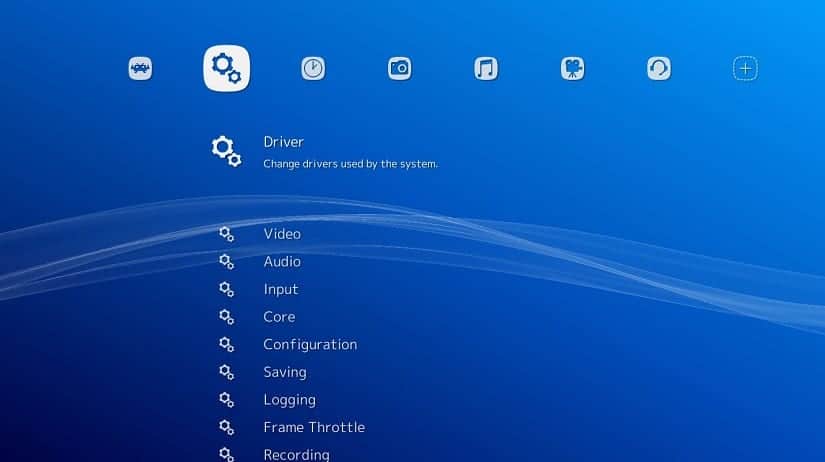
To install the RetroArch arcade emulator on Linux, we will use Snap installation ; for this, it is necessary to have support for this technology installed on your system.
To perform the installation on our system, we simply need to open a terminal and run the following command:
sudo snap install retroarch
And with this we only have to wait for it to download the necessary packages and wait for the installation to perform, this process may take a few minutes.
Once this is done, we simply go to our application menu and look for RetroArch to be able to run it on our system.
If you already have RetroArch installed using this method, you can update it with the following command:
sudo snap refresh retroarch
Now, if you're going to use your keyboard and mouse to play your favorite games, you shouldn't have any problems . Even if you use a Bluetooth controller, RetroArch should recognize it and allow you to configure it without any issues.
However, if you are going to use a controller connected via USB, you will probably have some trouble because RetroArch does not recognize it.
That's why they need to add extra support for this . They need to open a terminal and run the following commands:
sudo snap connect retroarch:raw-usb

sudo snap connect retroarch:joystick
Now RetroArch should already recognize the USB control which can already be configured in the application.
How to configure Key Mapping in RetroArch?
To configure the controller or action keys in RetroArch, we must go to the following path: Settings > Input.
Once inside the menu, we will find the different options to configure the controllers within RetroArch. The controllers are named Input User Binds , where each one corresponds to the configuration independently for each controller.
We have two ways to do it, either manually or by assigning one by one within the list with the help of User 1 Bind All.
User 1 Bind All will perform a small process of assigning the key map ; the name of the button or command will be shown on the screen, and we just have to press the button on our controller that we want to assign that function to.
How to uninstall RetroArch?
If you want to remove this application from your system, what you should do is open a terminal and execute the following command:
sudo snap remove retroarch
And ready with it they already eliminated this application.
Table of Contents